I am having issues signing in with Apple
Sign in with Apple works on iPhone and iPad only. On an Android phone or tablet, see On Android below.
On iPhone or iPad
First check that you are signed in to your Apple Account in your phone's Settings.
If signing in with Apple still doesn't work, disconnect Doggy Time from Sign in with Apple and try again. This does not delete your Doggy Time data.
- Open Settings and tap your name.
- Tap Sign in with Apple. On older versions of iOS, it is under Sign-In & Security.
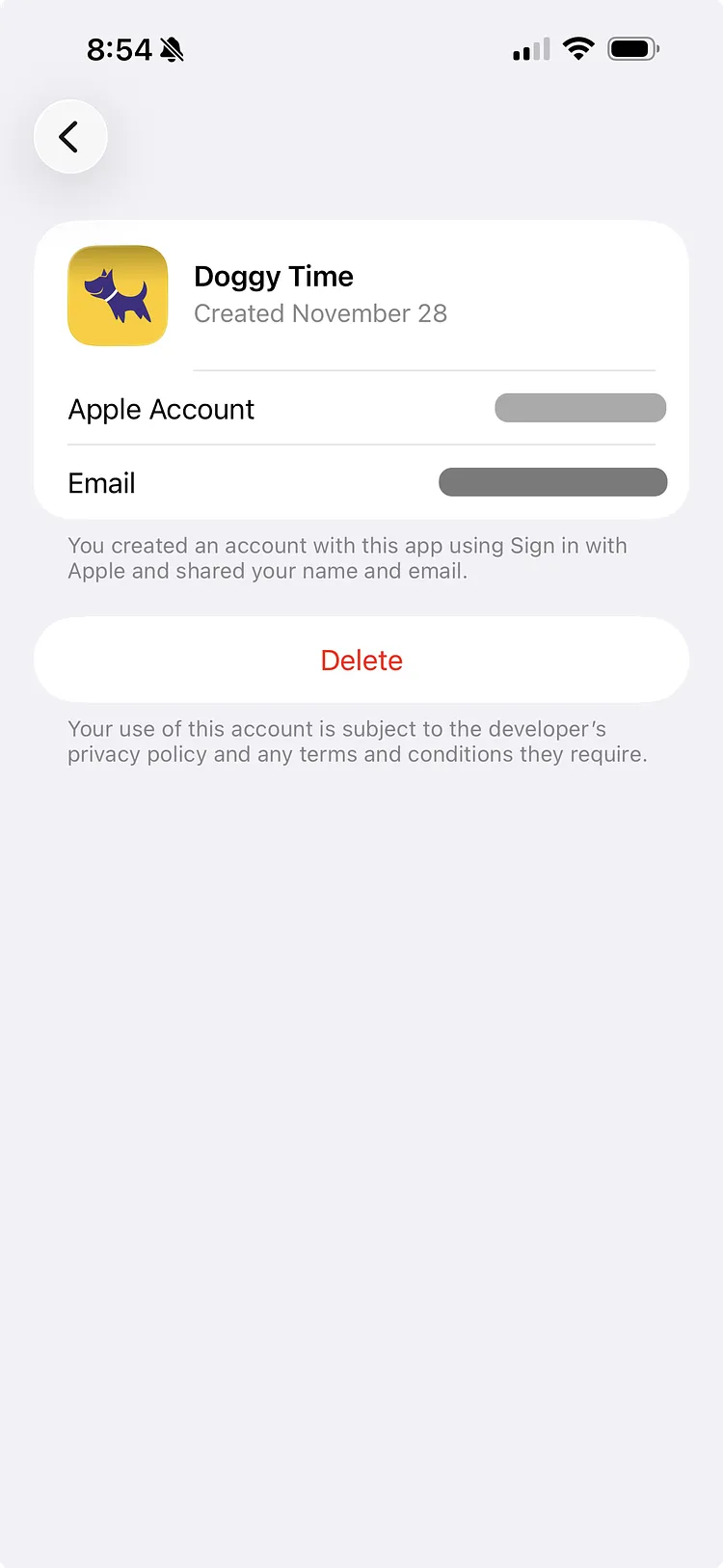
- Tap Doggy Time. Note the email shown there: it is the email of your Doggy Time account.
- Tap Delete and confirm.
- Wait a few minutes, then sign in with Apple again in Doggy Time.
- When Apple asks about your email, make the same choice as the first time, so you get back to the same account.
- If you are asked What's your name?, enter your first and last name.
On Android
Doggy Time on Android has no Sign in with Apple button. Your account belongs to the email your Apple Account shared with Doggy Time. Sign in with that email on Android and you are back in the same account, with your data and subscription:
- On the sign-in screen, enter your First Name, Last Name and that Email Address, then tap Continue.
- Enter the 6-digit code we email you.
If that email is a Gmail address, you can also tap Sign in with Google and choose it.
If you chose Hide My Email
If you chose Hide My Email when you first signed in with Apple, your account uses an address Apple made for Doggy Time, ending in @privaterelay.appleid.com. Signing in with your own email opens a new, empty account.
- Find the address: on an iPhone, iPad or Mac, open Sign in with Apple as above and select Doggy Time, or sign in at account.apple.com and open Sign-In & Security > Sign in with Apple.
- On Android, sign in with that address, as above. Apple forwards our email with the code to your own inbox.
- If the code doesn't reach you within a few minutes, open Help, tap Contact us, and tell us the address.
Troubleshooting
- "Sign in with Apple isn't available on this device right now.": check that you are signed in to your Apple Account in Settings, or sign in with email.
- This isn't the account you used before: tap Use that account to go back to your original account.
- You signed in and your data is missing: see How to get back to your original account.